
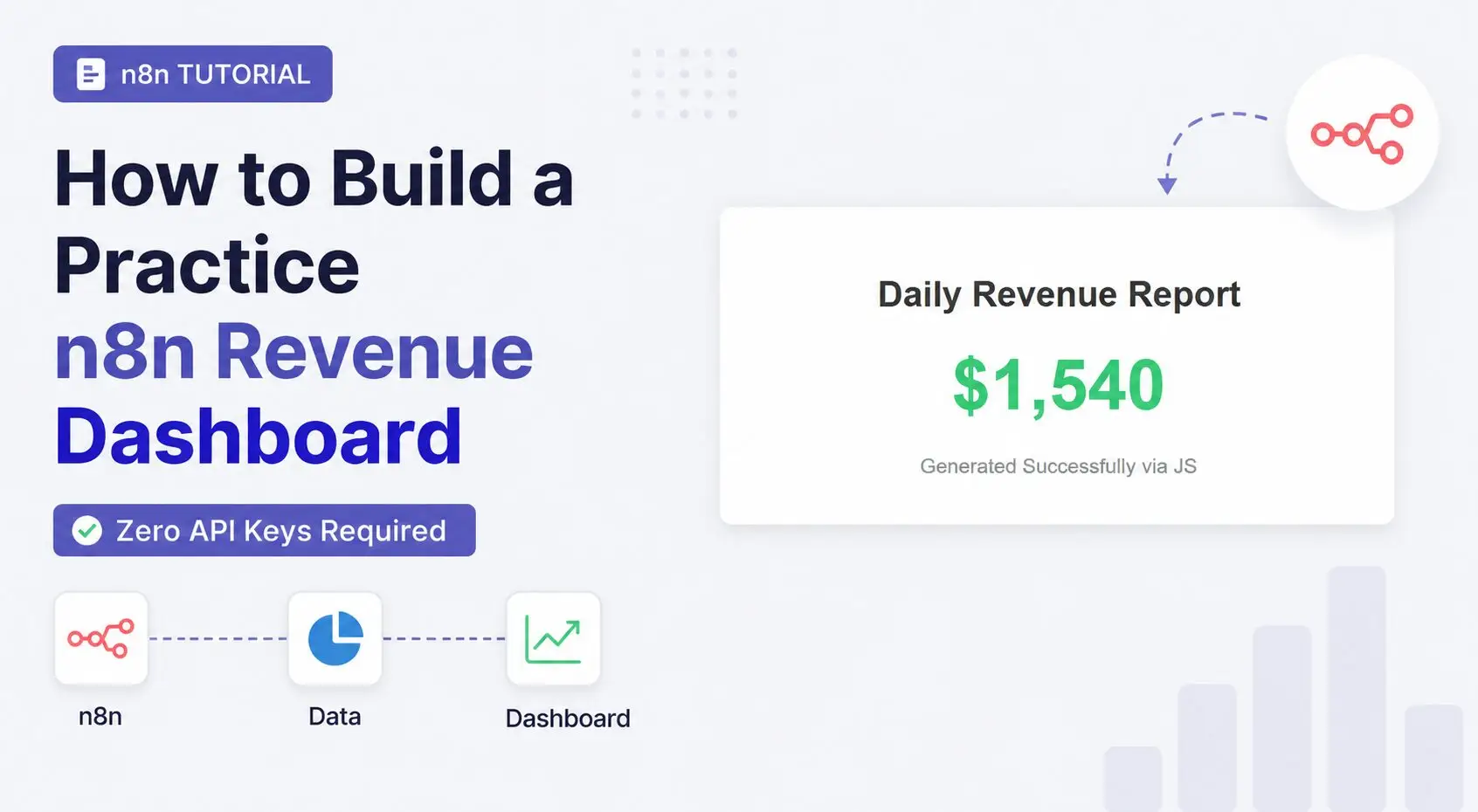
If you think you need expensive APIs, premium SaaS tools, or external credentials to build a serious automation system in n8n, think again.
One of the best ways to truly master n8n is by creating advanced projects using only built-in nodes, mock data, and internal workflow logic.
In this tutorial, you will build an automated, credential-free n8n Revenue Dashboard. without API credentials.
This project simulates how real enterprise automation systems process incoming orders, detect fraud, apply discounts, summarize revenue, and generate live HTML reports automatically.
By the end of this guide, you will learn:
- Webhook-based workflow architecture
- Data generation using JavaScript
- Fraud filtering logic
- VIP customer routing
- Price calculations
- Data aggregation
- HTML dashboard generation
- Binary file handling
- Real-world workflow structuring in n8n
But before building this automation project, make sure you have n8n running properly on your system. If you haven’t set it up yet, follow this complete guide to install n8n locally and get your environment ready.
Why Build an n8n Project Without APIs?
Most beginners get stuck because they think automation only works with API keys.
But the truth is:
The core power of n8n comes from:
- Logic building
- Workflow architecture
- Conditional routing
- Data manipulation
- Error handling
- Dynamic transformations
Once you master these concepts, integrating APIs later becomes much easier.
This project helps you focus on the actual brain of automation systems instead of struggling with credentials.
Final Project Overview
Here is what our automation engine will do:
- Accept requests through a Webhook
- Generate mock customer orders
- Detect fraudulent orders
- Separate VIP and regular customers
- Apply discounts dynamically
- Merge processed data
- Calculate total revenue
- Generate a live HTML analytics dashboard
- Serve the dashboard directly in the browser
This mimics how real e-commerce automation systems work internally.
The Core Blueprint & Architecture {#blueprint}
Our pipeline handles end-to-end data processing without needing a single third-party key. Here is how the functional layout maps out:
[Webhook Trigger] ➔ [Mock Data Generator] ➔ [Fraud Filter (Switch)]
                                                    │ (Valid)
                                                    ▼
                                            [Tier Check (If)]
                                             /            \
                                     (VIP)  /              \ (Regular)
                                           ▼                ▼
                                    [Apply Discount]   [Keep Base Price]
                                           \                /
                                            ▼              ▼
                                          [Merge & Append Streams]
                                                    │
                                                    ▼
                                         [Summarize Revenue]
                                                    │
                                                    ▼
                                        [HTML Engine (Binary)]
                                                    │
                                                    ▼
                                        [Webhook Response Node]
By constructing this n8n Revenue Dashboard, you will master moving data between individual entities and aggregated streams—a foundational skill for high-level workflow architecture.
If you’re still learning the n8n interface and dashboard layout, this complete interface guide will help you understand the workspace better: Ultimate n8n interface guide dashboard workspace
Step-by-Step Implementation Guide {#steps}
⚠️ CRITICAL NAMING RULE: You must match node names exactly as specified. Downstream nodes rely on these specific names to reference upstream variables. Misspelling a node name will break your workflow expressions!
Step 1: The Manual Trigger (The Starting Point)
To build and test our logic safely step-by-step, we will start with a manual button that lets us run the workspace on demand.
- How to add it: Click the + Add first node button on your blank canvas, search for Manual Trigger and select it.
Technical Explanation
The Manual Trigger node provides a controlled environment for building complex math structures. Unlike live webhooks or automated schedules, it only fires when you explicitly click the execution button. This allows you to construct and debug your data transformation architecture without handling unexpected external network requests during development.
Step 2: The Mock Data Engine (Code Node)
With our entry point open, we must populate our execution environment with dynamic data objects containing varying string payloads, values, and edge cases.
- Click the + icon, search for the Code node, and add it.
Node Configuration:
- Mode:
Run Once for All Items - Language: JavaScript
JavaScript
return [
  { json: { orderId: 1001, customer: "Alice Smith", tier: "VIP", item: "Laptop", price: 1200, country: "US", status: "completed" } },
  { json: { orderId: 1002, customer: "Bob Jones", tier: "Regular", item: "Mouse", price: 25, country: "UK", status: "completed" } },
  { json: { orderId: 1003, customer: "Charlie Brown", tier: "Regular", item: "Monitor", price: 300, country: "DE", status: "failed" } },
  { json: { orderId: 1004, customer: "Fraud Bot", tier: "Guest", item: "100x iPhones", price: 99999, country: "Unknown", status: "completed" } },
  { json: { orderId: 1005, customer: "Diana Prince", tier: "VIP", item: "Keyboard", price: 150, country: "US", status: "completed" } }
];
Technical Explanation
This JavaScript array injects structured JSON tokens simulating genuine platform behaviors. Note the intentional data anomalies: different customer rankings (VIP, Regular, Guest), varying pricing scales, and a dangerous entry point where the customer is flagged as a Fraud Bot located in an Unknown country.
Step 3: Fraud Filter & Security Routing (Switch Node)
Enterprise systems must clean raw inputs before running internal math functions to avoid computational waste and compromised ledgers.
- How to add it: Click the + output indicator on your
Mock Data Enginenode, search for the Switch node, and select it.
Node Configuration:
- Data Type:
String - Value to Check:
{{ $json.country }} - Rules Mapping:
- Routing Rule 1: If it Equals
Unknown, route to Output 0 (Fraud Alert). - Routing Rule 2: Fallback to Output 1 (Valid Orders).
- Routing Rule 1: If it Equals
Technical Explanation
The Switch Node evaluates the country variable profile within each incoming JSON item. It isolates the high-risk object (orderId: 1004) and drops it cleanly into Output 0. The remaining valid accounts automatically flow through the Fallback path (Output 1), isolating the rest of our engine from corrupting data entries.
Step 4: Segmentation (If Node & Pricing Execution)
Next, we divide traffic paths to run custom monetization rules based on customer data properties.
- How to add it: From Output 1 (the lower output dot) of your
Fraud Filternode, drag a connection line out, search for the If node, and add it.
Node Configuration:
- Node Name:
Tier Check - Condition: String Condition
- Value 1:
{{ $json.tier }} - Operation:
Equal - Value 2:
VIP
Branch Outputs Configuration:
True Branch (VIP Pathway):
- How to add it: From the top True output of the
Tier Checknode, drag a line out, search for the Edit Fields (Set) node, and place it. - Action: Set properties
- Assignment: Create a Number field named
finalPrice - Value Expression:
{{ $json.price * 0.9 }}
False Branch (Regular Pathway):
- How to add it: From the bottom False output of the
Tier Checknode, drag a line out, search for another Edit Fields (Set) node, and place it. - Action: Set properties
- Assignment: Create a Number field named
finalPrice - Value Expression:
{{ $json.price }}
Technical Explanation
The If Node handles boolean logic splits. VIP items are routed upward, where an explicit equation multiplies the price property by $0.9$, executing a neat 10% markdown. Regular profiles pass downwards, mapping their base price value over to finalPrice untouched. This ensures every object downstream has an identical key name (finalPrice), keeping our schemas balanced.
Step 5: Consolidating the Streams (Merge Node)
Processing data through separate nodes creates fragmented logic streams. We must consolidate them before crunching our operational metrics.
- How to add it: Drag a line from the output of
Apply VIP Discount, search for the Merge node, and add it. Then, drag a line from the output ofKeep Base Priceand connect it directly to the second input port of that same Merge node.
Node Configuration:
- Mode:
Append
Technical Explanation
The Merge Node running on Append mode functions as an array stitcher. It doesn’t look for matching properties or overwrite existing data lines. Instead, it waits for both the VIP and Regular processing branches to finish calculations, then packs the processed payloads back together into a single streamlined item batch.
Step 6: Data Aggregation & Operational (Summariz Node)
At this stage, our data consists of four distinct order items flowing through the ecosystem. To generate a high-level analytics report, we need to transform these individual records into a centralized summary.
- How to add it: Click the output point of your
Consolidate Streamsnode, search for the Item Lists node, and connect it.
Node Configuration:
- Operation:
Summarize - Fields to Summarize:
finalPrice - Aggregation Type:
Sum
Technical Explanation
The Item Lists Node flattens individual items into an aggregate structure. By applying the Sum operation to our custom finalPrice fields, n8n parses the individual amounts ($1080 + 25 + 300 + 135$) and returns a single object containing the total calculation metric: finalPrice.sum.
Step 7: Generating the HTML UI (Code Node)
With our financial metrics consolidated, we will convert the raw numeric outputs into a polished web dashboard using a binary memory allocation.
- How to add it: Click the output of your
Summarize Revenuenode, search for another Code node, and place it down.
Node Configuration:
- Mode:
Run Once for All Items - Language: JavaScript
JavaScript
// 1. Grab the total revenue using brackets to handle the dots in the name safely
const totalRevenue = $input.first().json["sum_Final_Price"] || 0;

// 2. Build the template string containing your HTML structure
const htmlPage = `
<!DOCTYPE html>
<html>
<head>
    <style>
        body { font-family: Arial, sans-serif; background-color: #f4f6f9; padding: 30px; }
        .card { background: white; padding: 30px; border-radius: 8px; box-shadow: 0 4px 6px rgba(0,0,0,0.1); max-width: 400px; margin: 0 auto; text-align: center; }
        h1 { color: #333; font-size: 24px; }
        .revenue { color: #2ecc71; font-size: 48px; font-weight: bold; margin: 20px 0; }
        .date { color: #7f8c8d; font-size: 14px; }
    </style>
</head>
<body>
    <div class="card">
        <h1>Daily Revenue Report</h1>
        <div class="revenue">$${totalRevenue.toLocaleString()}</div>
        <div class="date">Generated Successfully via JS</div>
    </div>
</body>
</html>
`;

// 3. Return the generated HTML string inside a JSON object property
return [{
    json: {
        dashboardHtml: htmlPage
    }
}];
Technical Explanation
This node extracts our calculated total revenue from the upstream node using $input.first().json.finalPrice.sum. It takes an HTML/CSS string template, injects the financial variable formatted to two decimal places, and converts the raw string layout into a base64 binary buffer. This transforms standard text data into a download-ready file asset held directly within n8n’s internal memory block.
Step 8: Serving the Output (Respond to Webhook Node)
Our final step is to deliver our freshly minted binary file back to the browser tab that initiated the request.
- How to add it: Pull a final connection line from the output of your
HTML Render Enginenode, search for the Respond to Webhook node, and attach it.
Node Configuration of Respond Webhook Trigger:
- Respond With:
Text - Response Body:
{{ $json.dashboardHtml }} - Change your very first node from a manual Trigger to a Webhook Trigger.
Node Configuration of Webhook Trigger:
- HTTP Method:
GET - Webhook Path:
practice-revenue - Respond:
Using Respond to Webhook Node
Technical Explanation
Swapping the initial step for a GET Webhook configuration transforms your workflow into an active web server, holding the browser’s HTTP request open using the Using Respond to Webhook Node property. At the end of the pipeline, the Respond to Webhook Node intercepts this specific connection and returns the processed HTML string payload directly to the user. Because the browser receives raw HTML code over a sustained request thread, it instantly compiles the layout engine and renders your visual performance dashboard inline without requiring an intermediate file download.
Testing Your Automated Pipeline {#testing}
To see your credential-free n8n Revenue Dashboard run live, follow these steps:
- Click Save in the top-right corner of your n8n workspace canvas.
- Open your initial
Webhook Triggernode and click the Listen for test event button. - Copy the Test URL provided in the webhook panel.
- Open a fresh tab in your web browser, paste the URL link, and hit Enter.
The workflow instantly wakes up, runs the mock dataset through your security layer, routes and discounts VIP orders, sums up the final revenue numbers, compiles the code, and renders an operational HTML data view directly inside your browser tab.